[FIX] Unity3D Black Screen on iOS Devices
We were trying to run a build of Puzzle Football on iPad yesterday to see how the game would look from an iPhone5 aspect ratio (16:9) to an iPad aspect ratio (4:3). But when we tried to run it the screen goes black. The game launches and the buttons were working so the game wasn't stuck. The weird thing was that it runs fine on the iPad2, but it shows a black screen on the iPad Mini.
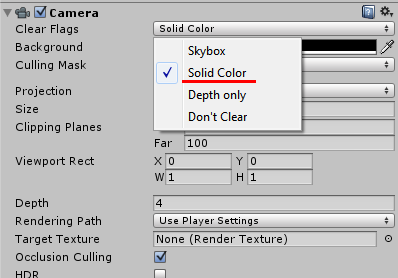
I found a fix on the Unity forum which mentions changing the Clear Flags property on the Camera object by setting it to "Solid Color" (it was on "Don't Clear" before). Not sure why it needs to be on Solid Color, but it's working now! No more black screen on the iPad Mini!

[How] Print Screen with Cursor
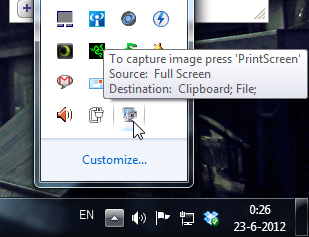
 Shocking discovery the other day... you CANNOT have your mouse cursor be visible when you make a print screen using the print screen button. Now, I've known that the cursor won't show up in print screens, which is awesome and useful usually, but there's actually no way to make the cursor visible in Windows 7 (not sure if it's possible in older versions.. I remember XP used to?). Looked all over the internet with no results. The best option is to install a 3rd party software such as Gadwin Print Screen.
Gadwin Print Screen is easy to use and it can other ride the current print screen button or other button if you like. You can toggle the cursor to be visible or not. Also, change the capture directory and the file type of your print screen. When downloading, make sure you download the freeware version, unless you're willing to pay for the pro version. So far, the freeware version works great! And the best thing is they aren't trying to force you to buy the pro version with watermarks or anything. Finally, print screens with cursors again!!! Great... right?
[How-to-Fix] Processing & JMyron = BSOD

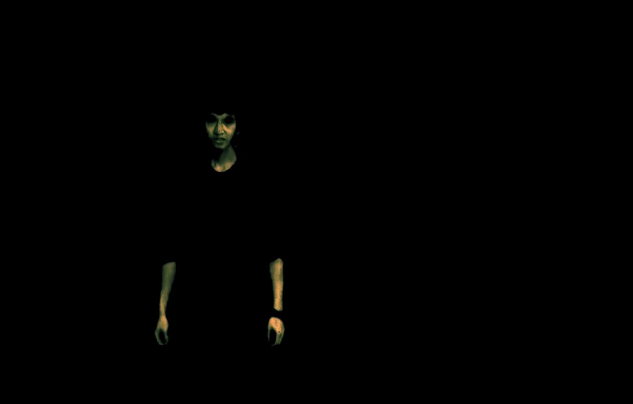
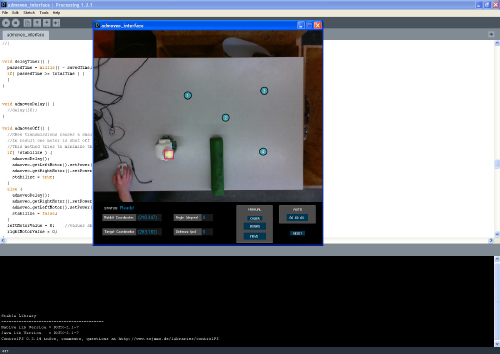
Back during my graduation project at the TU/e, I worked on building a system to create smoother robot motion through an operator-based interface using computer vision and Processing. The setup was to track the robot from above with a camera and have the motion controlled by having the operator selecting various points on the computer to create a motion path.

To realize this, I used Processing and the JMyron Library to track the robot with color recognition. BUT, there was a huge problem when I tried to get JMyron to work... Every time when I tried to run the code, my computer would get a blue screen and crash. I tried switching webcams, but still not luck. Google didn't help either, as I wasn't able to find a reason/solution for the blue screen to appear.
There was a forum a post pointing out that Logitech webcams might be the cause for the problem. Guess which brand of webcams I had...? So, I went to the store got a Microsoft Lifecam Cinema (720p) and everything worked perfectly! No more blue screen!! Also the camera is pretty awesome as well!
tl;dr, don't use Logitech cams if you're planning to use Processing and JMyron :)
[How-to-Fix] Catalyst Control Center & Native Resolution

My 23" Dell SP2309W has a native resolution of 2048x1152 and worked fine until yesterday when I tried to update the driver of my ATI Radeon HD 5700 graphic card. After updating, the highest resolution I could select was 1920x1080 and I was unable to set the resolution back to the native 2048x1152 resolution. This was driving me crazy, because everything was all blurry in 1920x1080 :(
The problem seems to occur when you have multiple screens connected to your PC; in my case I have my Dell monitor and my Samsung TV connected to my desktop. Before, my Dell was my primary and my Samsung was my secondary screen, but after the update my Samsung became the primary and my Dell the secondary. Apparently, after updating the drivers, ATI's Catalyst Control Center sometimes selects a different screen as your primary which results that my PC wasn't showing up the native resolution of my 23" monitor. To make it worse, your screen is duplicated across both screens, so it's not apparent that the index of your screens are changed or what so ever.
Anyway, to fix this, just disable your 2nd screen or make your monitor; with the higher native resolution, your primary! Easy as that, but it's not very obvious :)