YouTube's Player Size Button is Back!
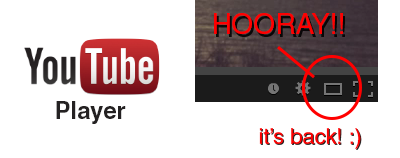
Hooray!! The YouTube player size button is back! A couple a days ago YouTube got a major update (Google+ comment integration) and it seems like they moved the player size button back to the video menu bar. In their previous update the player size button was moved and nested inside the cogwheel button. This was a huge pain in the ass since it required an extra step to perform an option that was very frequently used (you can read about the design and interaction analysis in my previous blog post).
Luckily, YouTube decided to put the player size button back on the video menu bar. Did they get too many complaints or did they just realize it was a horrible UI design choice? Anyway, hopefully they will put back the video quality button back is well haha.. To close this post, I would like to include the sound clip from Super Smash Bros below to celebrate the return of the video size button :)

YouTube's New Video Player UI
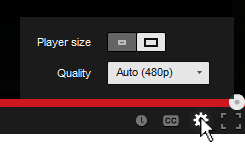
You've probably noticed the subtle change in the YouTube video player UI implemented a few days ago. They moved the "Player Size" and "Video Quality" buttons and incorporated them into the Cogwheel button. Their goal was to make the video player UI more compact and they've achieved that doing so.
Personally, I hate the new UI... not because I hate change, but because they moved the 2 of my most used buttons and nested them within another one. From an interaction standpoint the previous UI was simple:
- Set to Player Size: (1) Press Player Size button
- Change quality: (1) Press Video Quality button, (2) Set desired quality
Now with the new video player UI I have to perform an extra interaction in order to change the screen size and video quality:
- Set to Player Size: (1) Press Cogwheel button, (2) press Player Size button
- Change quality: (1) Press Cogwheel button, (2) Press Video Quality button, (2) Set desired quality
One extra interaction doesn't seem much, but for me and I think for a lot of other users it's an annoyance. Also, visually the new Player Size button is a bit weird. It looks like a toggle switch but it acts as a slider. I get confused sometimes thinking the "darker" side is the active one.. it's actually the other way around. To make it more intuitive and clear, there's a simple fix simply by adding a more distinctive rounded corner and by adding a drop shadow to the activated side.
[How-to-Fix] Chrome Adblock & Youtube Auto HD
Great extensions if you're using Google Chrome! :)
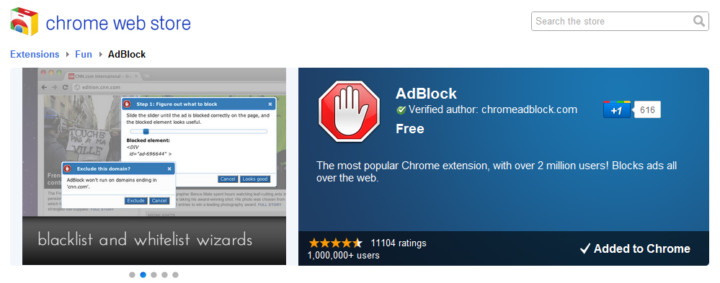
AdBlock

AdBlock for Chrome! Block all advertisements on all web pages, even Facebook and Youtube. Your browser is automatically updated with additions to the filter: just click Install, then visit your favorite website and see the ads disappear!
Auto HD for YouTube

Auto HD! With this extension all youtube video start playing in HD. In addition you can specify if you want the player widened.

[How-to-Fix] Joomla!: Enabling Object, Embed & Iframe
Joomla blacklists <object>, <embed> & <iframe> by default for security reasons and filters out and removes these tags from your articles if you try to add them in your content. The iframe and embed options are useful to integrate e.g. Google Maps and Youtube. There's a solution to disable the filtering by de-selecting certain user groups in joomla as blacklisted for filtering. This didn't work for me though.
Instead, here's a method to get it to work by diving into the PHP file itself. To disable the filtering, edit the filter PHP file and remove the tags from the blacklist.
Path: libraries\joomla\filter\filterinput.php
$tagBlacklist = array ('applet', 'body', 'bgsound', 'base', 'basefont', 'embed', 'frame', 'frameset', 'head', 'html', 'id', 'iframe', 'ilayer', 'layer', 'link', 'meta', 'name', 'object', 'script', 'style', 'title', 'xml');